View tally, sum, average, range of a field value in Inspect
For the current document population in the Document List, you can view the number of documents coded with a specific field value, the sum of the values of a specific field, the average of the values of a specific field, and the range of the values of a specific field.
When you calculate the sum, average, or range of the float fields, the system rounds the calculated values to two decimal places.
For more information, refer to Tally, sum, average, or range of a field value.
To view the tally, sum, or average of a field value, complete the following procedure.
-
In the Main Menu, select .
-
At the top of the Document List, click
 .
. -
In the Tally, Sum, or Average dialog box, perform the following actions.
-
To view the number of documents coded with a specific field value, perform the following actions.
-
Under Function, select Tally/Count.
-
In Field, select a field from the drop-down list.
-
Click Calculate.
-
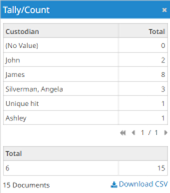
The Tally/Count dialog box displays the number of documents coded with the selected field value. Use the pagination tools to go to the first, previous, or next page.
-
To download the Tally report, in the Tally/Count dialog box, click Download CSV.
-
When the CSV file appears at the top right of the page, select it to view the report. Alternatively, you can access the file in your Windows Downloads folder.
-
You can view the Tally Report job status in the Jobs Overview page, the JOBS page in Inspect.
-
-
To view the sum of the values of a specific field, perform the following actions.
-
Under Function, select Sum.
-
In Field, select a field from the drop-down list.
-
Click Calculate.
-
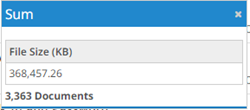
The Sum dialog box displays the sum of the values of the selected field.
-
-
To view the average of the values of a specific field, perform the following actions.
-
Under Function, select Average.
-
In Field, select a field from the drop-down list.
-
Click Calculate.
-
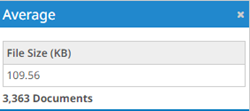
The Average dialog box displays the average of the values of the selected field.
-
-
To view the range of the values of a specific field, perform the following actions.
-
Under Function, select Range.
-
In Field, select a field from the drop-down list.
-
Click Calculate.
-
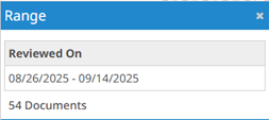
The Range dialog box displays the range of the values of the selected field.
-
-